File Information panel
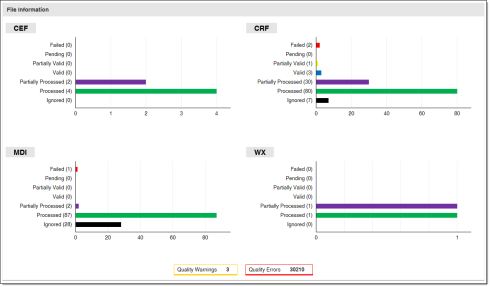
The File Information panel displays the import status of files for each file type during the selected date range. This can visually alert you to the presence of issues that affect file processing, such as whether the MDI has processed correctly. There is a chart for each of the enabled file types, such as Common Events Format (CEF) or Master Data Import (MDI). For more information on enabling file types, see File Import Configuration. Click a chart to filter the File Processing table to display only the selected file type.
Tip: The OWI file type is an .xml file created during OpenWay data import, rather than a file that is explicitly imported. For more information, see Configuring communication with OpenWay using Data Hub Agent. or Configuring integration with Itron Hybrid Connector (IHC).
The statuses depict the import process flow. When files are detected after upload, they become Pending. Then, they either become Failed, Partially Valid, or Valid. Partially Valid files become Partially Processed after the valid data is posted. Valid files become Processed after the data is posted. Pending or Failed files can be flagged as Ignored by the user. File statuses are mutually exclusive.
The File Information panel also displays the number of file quality warnings and errors for the selected date range, file type, and file status.
|
Chart item |
Description |
|---|---|
|
Y-axis |
File Status. The distinct status types a file can have. The value in parentheses indicates the number of files with that status.
Click Y-axis labels to filter the File Processing table to display only the selected file type and file status combination. |
|
X-axis |
File Quantity. The number of files. |
|
Chart data |
Click data on the chart to filter the File Processing table. This will display only the selected file type and file status combination. |
|
Quality Warnings |
The number of file quality warnings in the selected files. |
|
Quality Errors |
The number of file quality errors in the selected files. |