Deleting ItronEE application using Identity API
To resolve the "Failed to store ACL rollback information" error that occurred while updating the database, the ItronEE APP application must be deleted from the installation.
Use the following procedure to delete the ItronEE APP application:
-
Open the Itron Identity API Swagger page URL and change the device name in the URL to your device’s server name. URL example:
https://iee-web-dev1.itron.com:20800/tenantmanagement/swagger/index.html?urls.primaryName=Identity+API+v3+%28Ocelot+Call+Forwarding%29
-
Click Authorize.
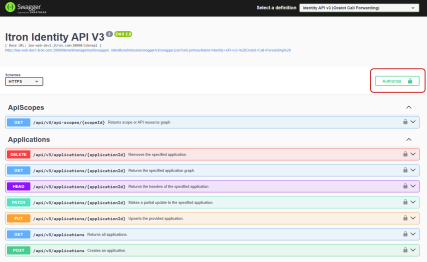
-
In the Available authorization dialog that appears, select the checkbox and then click Authorize.
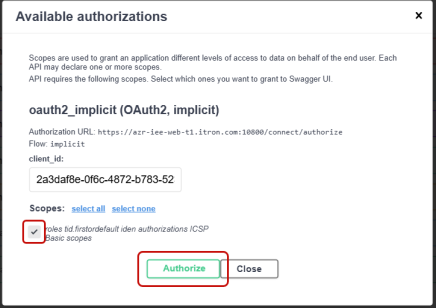
The IEE Web UI sign in page opens in a new tab.
-
Sign in with your Windows user credentials. For more information, see Windows authentication in the IEE MDM Help.
-
In the Available authorizations dialog that appears again, click Close and return to the Swagger page.
-
Go to Applications, use the GET endpoint to retrieve all application details, then click Expand.
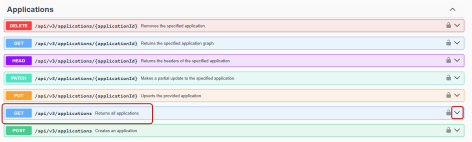
-
Click Try it out.
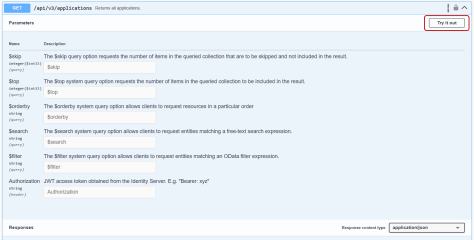
-
Click Execute.
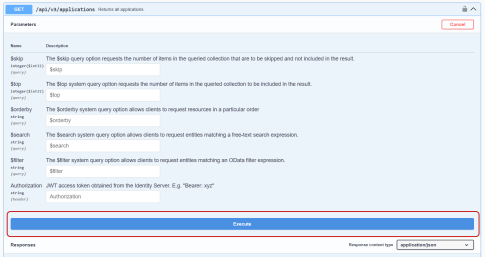
-
In the Response file, click the Download button. When prompted, select Notepad++ to open the file.
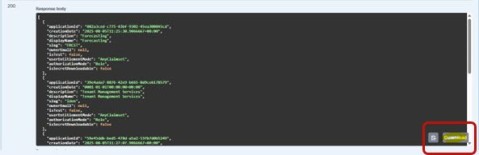
The Response file opens in Notepad++, example below.
[ { "applicationId": "39e4ada7-8876-42e9-b665-0d9ce6178579", "creationDate": "0001-01-01T00:00:00+00:00", "description": "Tenant Management Services", "displayName": "Tenant Management Services", "slug": "iden", "ownerEmail": null, "isTest": false, "userEntitlementMode": "AnyClaimset", "authorizationMode": "Role", "isSecretDownloadable": false }, { "applicationId": "59e45ddb-bed5-478d-a5a2-53fb7d0b5249", "creationDate": "2024-03-14T10:30:37.3833333+00:00", "description": "Software Platform", "displayName": "Software Platform", "slug": "ICSP", "ownerEmail": null, "isTest": false, "userEntitlementMode": "AnyClaimset", "authorizationMode": "Persona", "isSecretDownloadable": false }, { "applicationId": "418d05f1-3ab7-429d-a423-0c0623234d49", "creationDate": "2024-03-14T10:30:40.4666667+00:00", "description": "Itron Presentation Layer Portals", "displayName": "Itron Presentation Layer Portals", "slug": "IPL", "ownerEmail": null, "isTest": false, "userEntitlementMode": "TenantWide", "authorizationMode": "Role", "isSecretDownloadable": false }, { "applicationId": "4e1954b0-5a2d-4863-89f7-9a16eb27ac83", "creationDate": "2024-03-14T10:35:50.2133333+00:00", "description": "Itron Enterprise Edition", "displayName": "Itron Enterprise Edition", "slug": "iee", "ownerEmail": "jbanthes@itron.com", "isTest": false, "userEntitlementMode": "TenantWide", "authorizationMode": "Role", "isSecretDownloadable": false }, { "applicationId": "416b1c80-0595-487b-8246-456ca1843933", "creationDate": "2024-09-17T06:41:24.8133333+00:00", "description": "Itron Enterprise Edition", "displayName": "Itron Enterprise Edition", "slug": "IEEAPP", "ownerEmail": null, "isTest": false, "userEntitlementMode": "AnyClaimset", "authorizationMode": "Role", "isSecretDownloadable": false } ] -
Return to the Swagger page, select Delete endpoint, and then in the application ID field, enter the application ID from the Response file.
-
Click Execute to delete the ItronEE APP application.
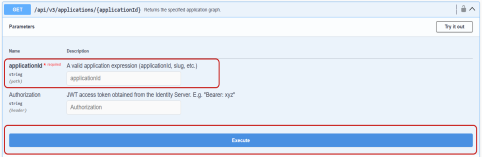
-
Install the latest UI build again.
-
Once the installation is complete, sign in to Web UI using your Windows user credentials.
-
Go to Administration > Tenant Default > Applications to verify that the ItronEE application is listed. If the ItronEE application is not listed, select Add (
 ) to include the application in the list.
 -
Go to Administration > Tenant Default > Clients to verify that the ieetenantclient client exists. If the client is not present, create it. For more information, see Clients in the Tenant Management Online Help.
Important! The client's name must match the IEE Licensing client name.
-
After creating the Client name, you will receive a client ID and a secret key. Be sure to copy and store these values.
-
In the IEE rich client, go to System settings > Licensing and update the secret key by replacing the license password with the copied and stored secret key. Click Save to apply the changes.
Important! You must restart the ItronEE APP Server and API microservices for the changes to take effect.