Task Monitor cards
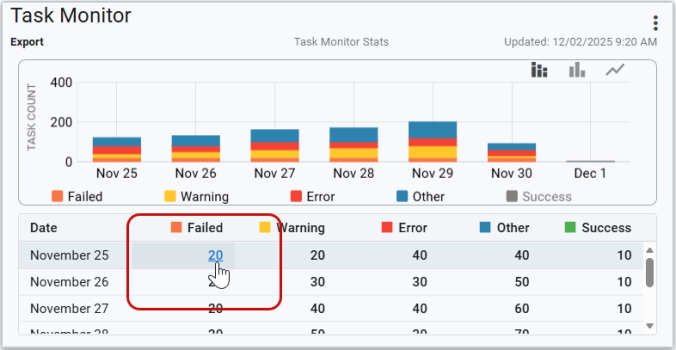
Task Monitor cards show the status (Failed, Warning, Error, Other, and Success), task count, and task statistics for the current day and six previous days. By default, Task Monitor cards appear in the form of large-sized cards and cannot be resized.
The card displays when the database job was last run, including the date, time, and data of the update. Click Refresh ( ) in the page header to update the date and time; the card's data only changes after the database job runs.
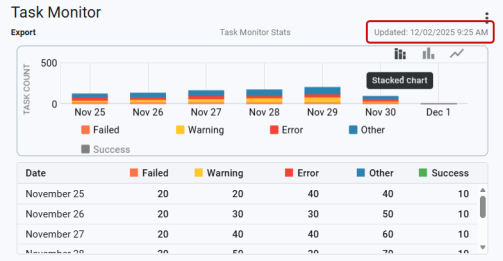
Tip: The cards on the dashboard are automatically refreshed based on the card refresh rate setting for Web UI.
Task Monitor cards allow you to:
-
Add multiple task monitor cards, each configurable with the same or different task categories.
-
Click on the status counts in the table to navigate to the Task Monitor interface with selected filters applied (category, date range, status, runtime, and all task types under the selected category).
-
Select an empty or blank task category, it resets the card back to its default state.
-
Zoom in and zoom out of a card on the chart.
Task Monitor cards support the following actions:
-
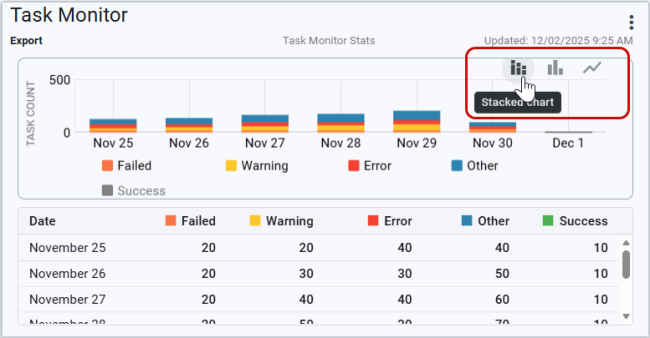
By default, the task count view is set to Stacked chart (
 ). To change the chart view on the card, select Clustered chart (
 ) or Line chart (
 ).
).
-
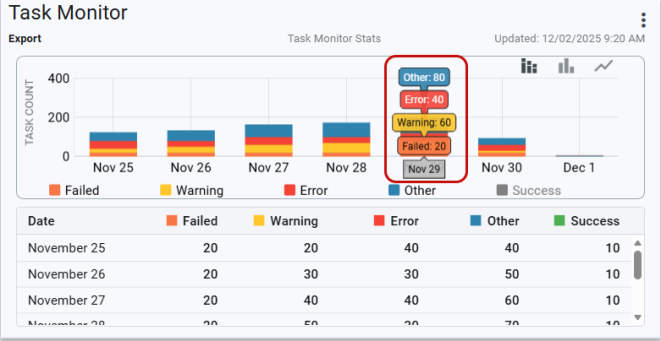
Hover over the chart to view the status details for a given date.
-
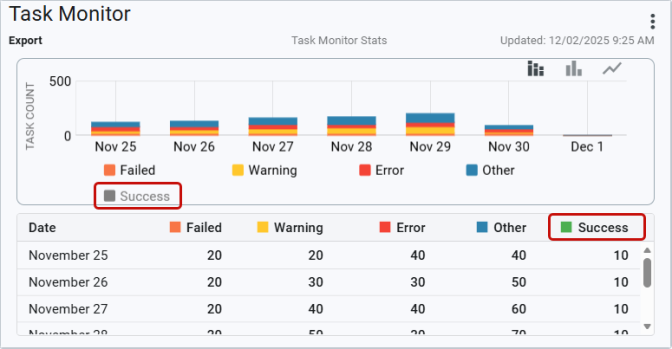
To hide a status from the chart, select the status in the legend. The status changes from a color to light gray to indicate it is hidden on the graph. Select the legend item again to show the hidden data; the original color is restored.
-
The task count for each status in the Task Monitor table are clickable links. Select a task count in the table for any status (Failed, Warning, Error, Other, or Success) to view details pertaining to that status. Clicking the task count in the table navigates you to the Task monitor interface. For more information, see Task monitor, Task logs, and Child tasks.
Related topics: