Installing Core Services
To install IMS core services, log on to the server with the ServiceAccountUserName (see Core Services JSON Configuration File) and proceed with the following steps:
- Log on to the server as the Domain Service Account user.
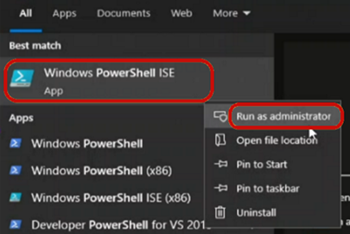
Open the Windows PowerShell Integrated Scripting Environment (ISE) as an administrator.
Important! To unblock the execution policy for PowerShell, run the following command before proceeding to the next step:
Set-ExecutionPolicy -ExecutionPolicy Unrestricted -Force -Scope CurrentUser
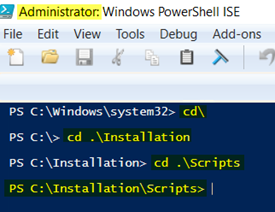
Use the following command to navigate to the path where the installation script is saved:
cd .[<script path]
At the command prompt, run the following command:
.\Deploy-CoreServices.ps1 -CoreJsonConfigFilePath [Core Service json file path] -ServiceAccountPwd [service account password] -AMMPwd [AMM endpoint user password] -JMSPwd [JMS endpoint user password]`

Note: The strings -AMMPwd and/or -JMSPwd can be omitted if the core components in the JSON config file do not include the AMMTransport service or the JMSTransport service (or enter the passwords as NA if you choose not to omit these fields). Otherwise, provide this parameter to avoid using the default password in the configuration.
You can also use this command (.\Deploy-CoreServices.ps1 -CoreJsonConfigFilePath) to install or upgrade the following services:
- IMS
- SOAPTransport
- AMMTransport
- JMSTransport
- MonitoringService
The services that you install or upgrade must be listed in the CoreComponents section of the IMS_Core_Config.json file. Be sure to provide the proper passwords for these services. In the following example, only IMS and MonitoringService are being installed on the primary server.
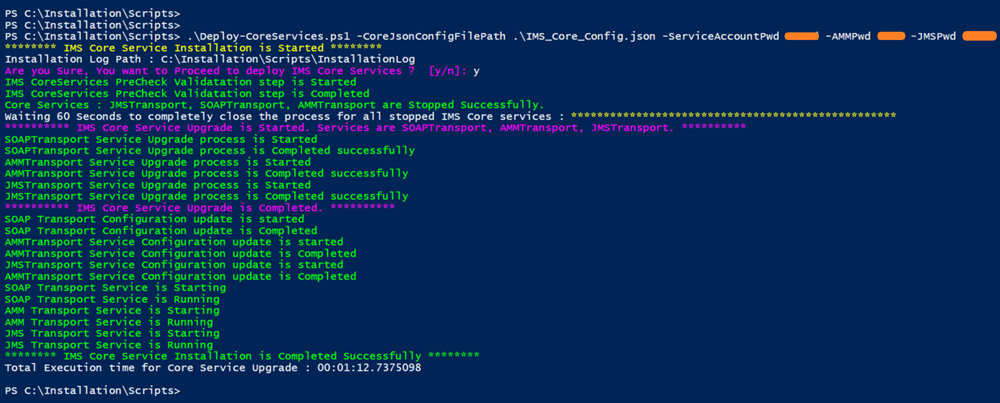
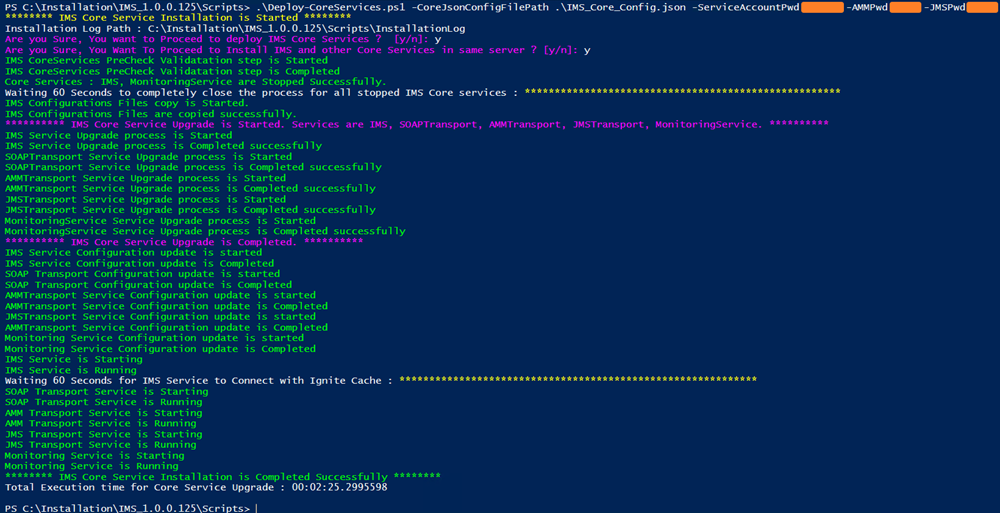
The following PowerShell screen shot shows the complete installation process for the example described in step 4.
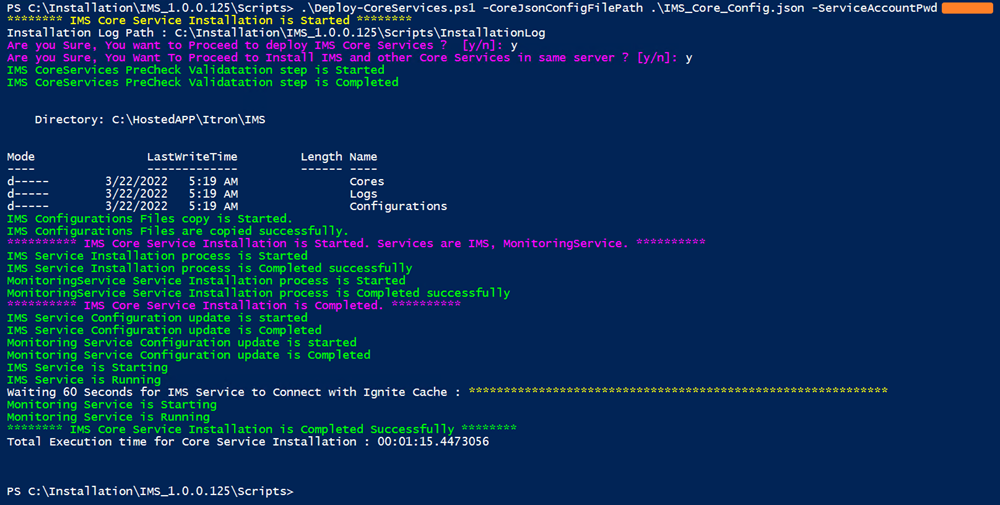
In the following PowerShell command example, the other core services are being installed on the client server. This example includes the -AMMPwd parameter in the command as the AMMTransport and SOAPTransport core services are being installed.

Important! If installing only the AMMTransport, SOAPTransport, and JMSTransport core services on the client server, make sure that the other services are removed from the CoreComponents attributes in the JSON core configuration file. As part of the pre-check validation, the script will check the connectivity from the server to the AMM endpoint . If you want to skip the check, you can add -IgnorePreValidation to the command, but it will skip the entire pre-check validation. Refer to Additional Commands for Core Service Installation for more commands that can be used to manage the installation process.
In the case of a single machine, all core services can be installed with a single command, as shown in the following example.
See also: