Configuring Streaming Data settings
After installing and configuring the IEE REST APIs, the StreamDATA REST API settings must be modified to communicate with the HOTQUERY API in IMS.
-
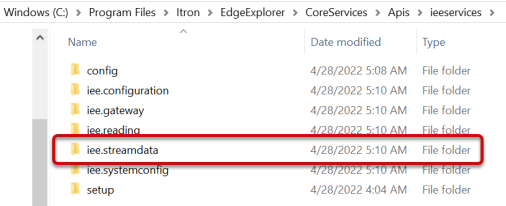
In Windows Explorer, navigate to C:\ProgramFiles\Itron\EdgeExplorer\CoreServices\Apis\ieeservices (this is the IEE default installation location, this path may vary if you have changed this location).
-
Double-click the iee.streamdata folder.
-
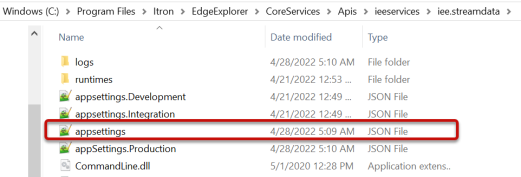
Double-click appsettings.json to open the file.
-
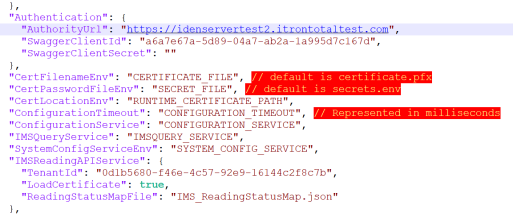
Replace AuthorityURL with the Identity System URL.
For example, https://computer.mydomain.com:10800.
-
Replace the TenantId with your TenantId. TenantId is case sensitive.
-
-
Save and close the file to return to the previous screen.
-
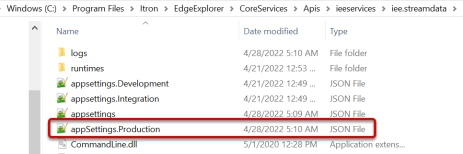
Double-click apps.settings.Production.json to open the file.
-
Enter the name for SECRET_FILE.
-
Enter the URL for IMSQUERY_SERVICE.
For example, https://computer.mydomain.com:9001.
-
Enter the path certificate for RUNTIME_CERTIFICATE_PATH.
-
Add the certificate names for CERTIFICATE_FILE.

-
-
Click Save and restart the Stream Data API service.