Creating a CA signed certificate on Windows Server CA
-
Generate a Certificate Signing Request (CSR) in the Microsoft Management Console (MMC), as shown here: https://www.youtube.com/watch?v=W2-IphtGcZU.
Ensure that, in the certificate, either the Common name in the Subject Name values or (if specified) the DNS Name in the Subject Alternative Names (SAN) matches the web server’s fully qualified hostname in the URL that will be shared with end-users. The same hostname should also be resolvable from the web server since the server-side components use it to communicate with each other.
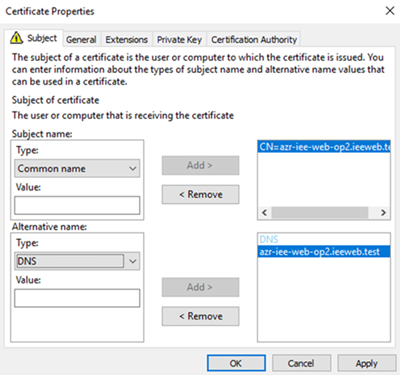
On the Subject tab of the MMC Certificate Properties dialog, the value in the Alternative name field should match the machine name (for example, azr-iee-web-op2.ieeweb.test).
-
Navigate to the Active Directory Certificate Services web URL:
https://<FQDN>/certsrv/
where <FQDN> is the server's fully qualified domain name (for example: https://azr-iee-web-op2.ieeweb.test/certsrv/).
- Log on as an admin user.
- Select Request a certificate > Advanced certificate request.
- Copy the content from the file generated in step 1 and paste it in the Saved request field.
- Select Web Server as the certificate template and then click Submit.
- Download the certificate and import it into the Web UI server.