Stale entries in the browser cache
Symptoms:
- Unexpected behavior occurs in the UI portal after upgrade; for example, the UI is unresponsive or displays an error message upon start-up.
- Problems vanish if tested in the browser's private/incognito mode.
Possible causes:
This may be caused by a stale (unrefreshed) browser cache.
Resolution:
Clear the browser's local site cache:
-
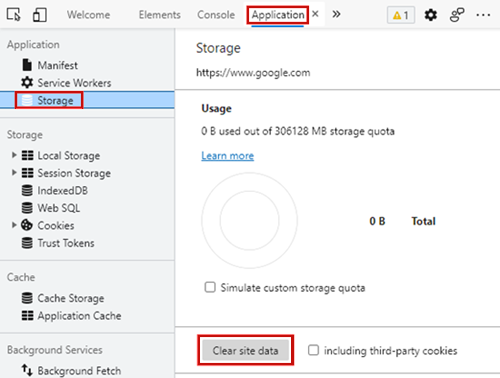
In Chromium-based browsers such as Google Chrome and Microsoft Edge, open the Developer tools (keyboard shortcut: F12 or Ctrl+Shift+I). Select the Application tab, select Storage on the menu panel, and then click Clear site data.
Close the Developer tools panel and refresh the browser page.
-
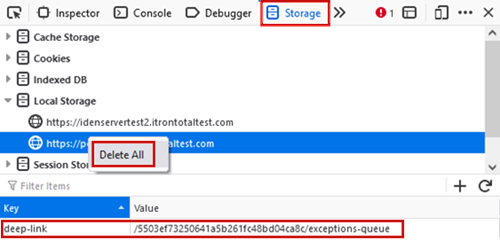
In the Mozilla Firefox browser, open the Web Developer Tools (keyboard shortcut: F12 or Ctrl+Shift+I). Select the Storage tab and then expand Local Storage. Select a URL listed under Local Storage and check to see if any data is present in the table for the selected host.
Note: If no data is present for a selected URL, then no table appears and the message "No data present for selected host" is shown.
If a table with data appears, right-click on the selected URL and then select Delete All.
Repeat this step for any other Local Storage URLs with data present. Close the Web Developer Tools panel and refresh the browser page.