Upgrading Web UI API
-
If you have already have Web UI 3.1 installed and you want to install Web UI 3.5, you must uninstall Web UI 3.1. For more information, see Uninstalling Web UI 3.1 Service Pack.
-
If you want to install Web UI 3.1, you need to install the Web UI 3.1 Service Pack. For more information, see Upgrading Web UI API 3.1 Service Pack
Note: This procedure is only applicable for IEE Cumulative Service Pack 2 and Web UI 3.5 installations and above.
Use the following procedure to upgrade the Web UI API:
-
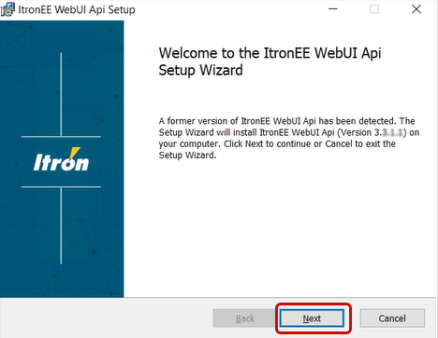
From the Service Pack folder, run the Itron.EE.WebUI.Api.3.x.x.x.msi file in Administrator mode and click Next.
-
Select I accept to agree to the terms in the license agreement, and then click Next.
-
In the Destination folder dialog, the default installation location for Install ItronEE WebUI Api to: is C:\Program Files\Itron\IEE Web\. Click Change to select another directory, if needed.
-
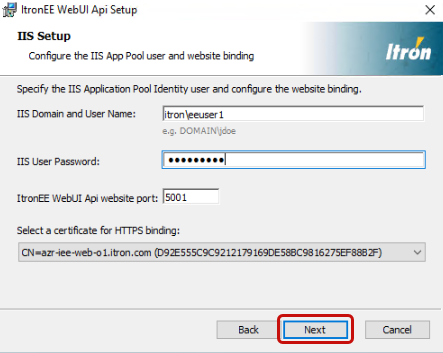
In the IIS Setup dialog, complete the following:
-
IIS Domain and User Name. The IIS domain and Active Directory account for the IIS Application Pool Identity.
-
IIS User Password. The IIS Application Pool Identity password that is associated with the username.
-
ItronEE WebUI Api Website Port. The port that is used by the API service. The default port number is 5001.
-
Certificate for HTTPS Binding. Select a CA/self-signed certificate with Subject Alternative Name (SAM), including host name from the dropdown menu. Select the SSL/TLS certificate previously set up.
-
Click Next.
-
-
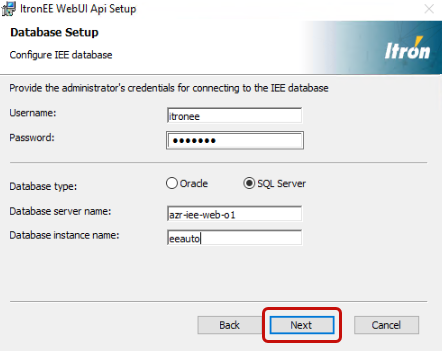
In the Database Setup dialog, complete the following:
-
Username. User account name for connecting to the IEE database. The user must have administrator privileges for the IEE database.
-
Password. User account password for connecting to the IEE database.
-
Database Type. Select SQL Server.
-
Database Server Name. Name of the SQL Server database server (for example, azr-iee-web-o1).
-
Database Instance Name. Name of the SQL Server database instance (for example, eeauto).
-
Click Next.
-
-
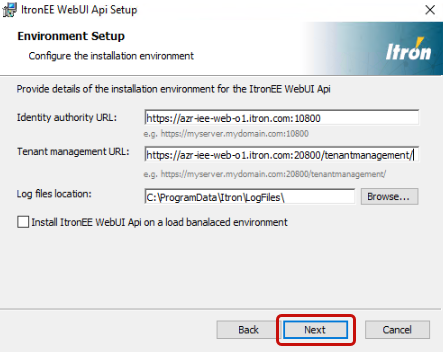
In the Environment Setup dialog, complete the following:
-
Identity authority URL. Runs on port 10800 by default in the following format:
https://<hostname>.<domain>:10800 where <hostname>
is the fully qualified domain name of the server Itron Platform has been installed
(for example, https://azr-iee-web-o1.itron.com:10800).
-
Tenant Management URL. Runs on port 20800 by default, in the following format:
https://<hostname>.<domain>:20800/tenantmanagement/
where <hostname> is the fully qualified domain name of the server Itron Platform has been installed
(for example, https://azr-iee-web-o1.itron.com:20800/tenantmanagement/).
-
Log files location. Click Browse and select the folder path for the application logs that will be generated by the IEE WebUI API default path (C:\ProgramData\Itron\LogFiles\).
-
Install ItronEE WebUI Api on load balancer environment. If installing IEE in a load-balanced environment, select the checkbox for this option.
Note: If this option is selected, then the typical value for the Load Balancer Domain Name is the device name (for example, azr-iee-web-o1.itron.com).
-
Click Next.
-
-
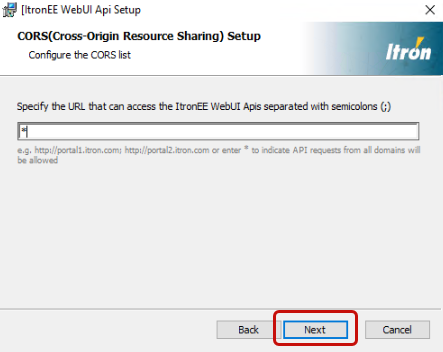
In the CORS dialog, enter the URLs that can access the IEE Web UI APIs.
-
Separate multiple URLs with semicolons (;).
-
Enter a wildcard character (*) to indicate that requests from all domains are allowed.
-
-
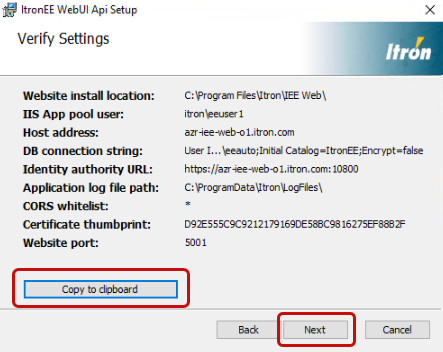
In the Verify Setting dialog, complete the following:
-
Verify all the settings.
-
Click Copy to clipboard to capture the settings and then paste them into a text file for future reference.
-
Click Next.
-
-
Click Install to start the installation.
-
Click Finish when the installation has completed.
-
Configure the IEE REST APIs:
-
Copy the ServerBootstrap.config file located in the IEE folder (C:\ProgramData\Itron\Enterprise Edition).
-
Paste the ServerBootstrap.config file into the installed API directory (C:\Program Files\Itron\IEE Web\CoreServices\Apis\ieeservices\config)
Important! The certificate used during installation must be installed on this device.
-
Open PowerShell 7 in Administrator mode and run the following command to start the services:
& 'C:\Program Files\Itron\IEE Web\CoreServices\Apis\ieeservices\setup\start.ps1' 'C:\Program Files\Itron\IEE Web\CoreServices\Apis'
-
Go to Control Panel > Programs > Programs and Features on your device and verify that the Web UI API was installed.

-