Installing SQL Server 2022 with named instance
Please contact your IT Help Desk to get the SQL Server 2022 Setup application.
Use the following procedure to install SQL Server 2022 with named instance:
-
Select the SQL Server setup application and run in administrator mode.
-
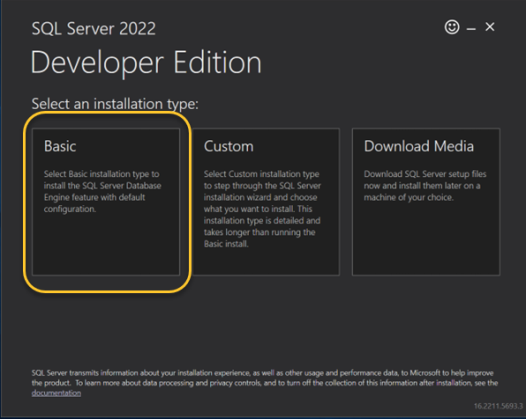
Select Basic for the installation type.
-
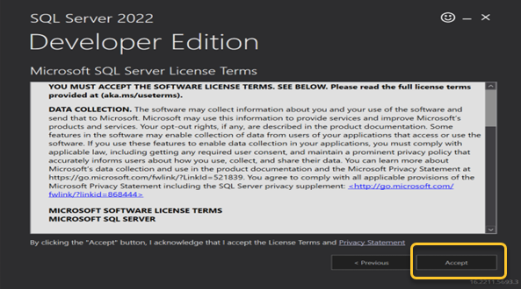
Select Accept to agree to the license terms.
-
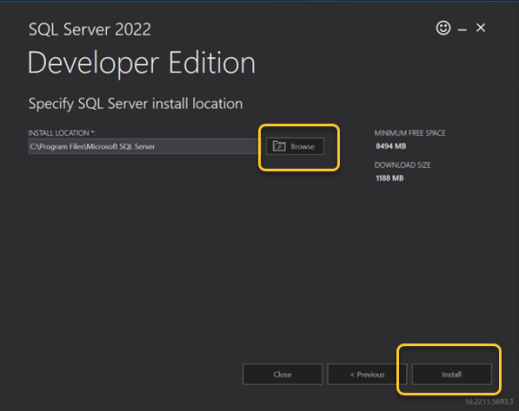
Select Browse if you want to change the location of the installation path, and then click Install.
-
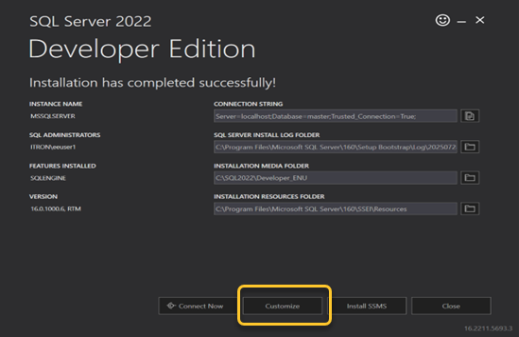
Click Customize when the installation has completed.
-
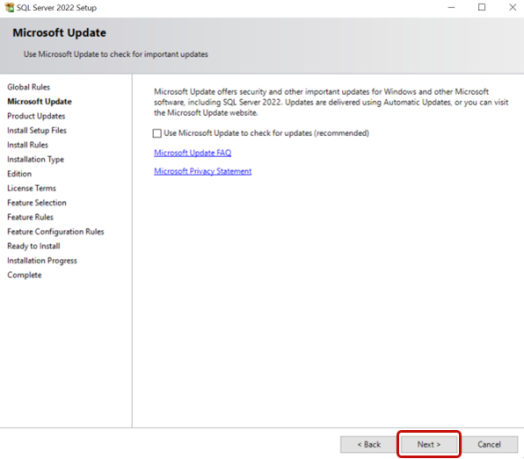
Click Next.
-
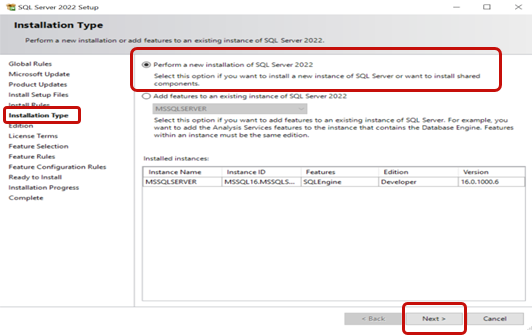
Select Perform a new installation of SQL Server 2022 and click Next.
-
Make the following selections from the main menu:
-
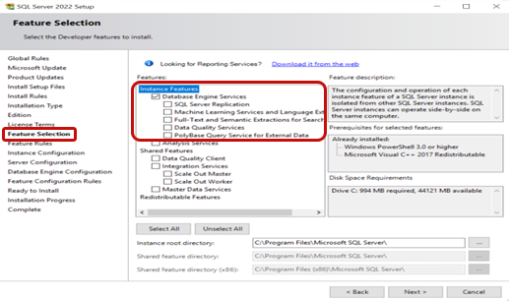
Feature Selection. Select Database Engine Services, and any other features you require for this instance.
-
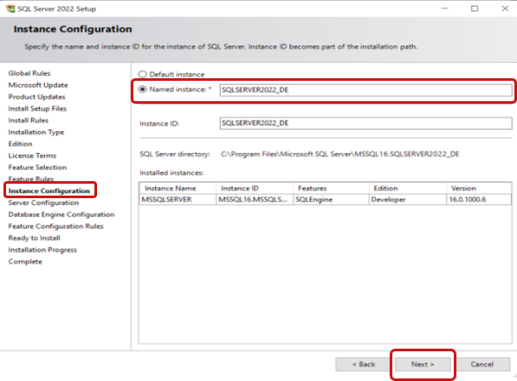
Instance Configuration. Select Named instance and provide a unique, descriptive name for the new instance. For example, SQLSERVER2022_DEV. This name will be used to connect to the instance.
This Instance ID is automatically generated based on the instance name.
-
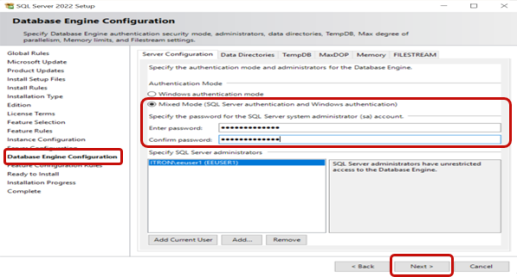
Database Engine Configuration. Select Mixed Mode and specify the SQL Server administrator username and password. Click Next.
-
-
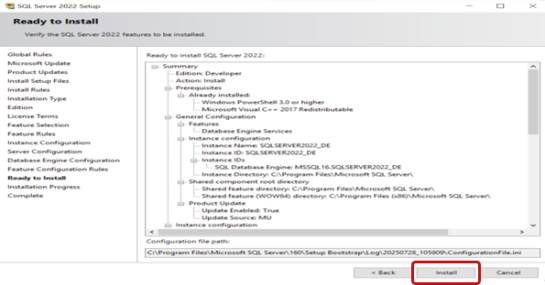
Click Install to install the application.
-
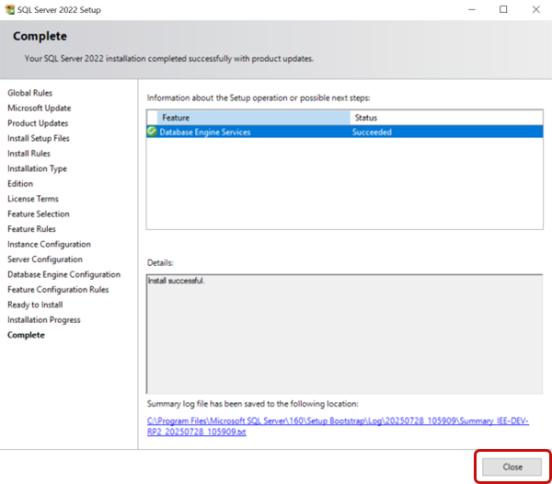
Click Close when the installation has completed.