Configuring IDeviceCommReceive service
The IDeviceCommReceive service sends on-demand read responses to SAP.
-
Go to System Administration > System Admin > Code Table Setup.
-
From the Code Table Selection List, select Web Service Table.
-
In the Service Contract column, find IDeviceCommReceive and select the row.
-
Configure the following parameters:
-
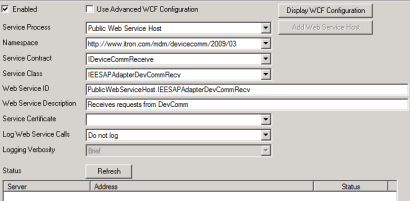
Enabled. Select. Determines whether web service is enabled and can be started by MDUS.
-
Service Process. Select Internal Web Service Host or Public Web Service Host. Use whichever host you used for the confirmation services.
-
Namespace. Select http://www.itron.com/mdm/devicecomm/2009/03.
-
Service Contract. Select IDeviceCommReceive.
-
Service Class. Select IEESAPAdapterDevCommRecv.
-
Web Service ID. This parameter is updated automatically when you initially define the other parameters. However, if you change the Service Process from the dropdown menu, you must update this parameter manually. For example, if you change from internal hosting to public hosting, change Internal to Public in this parameter.
-
-
Click Save. To view the current status of the web service or the web service URL, click Refresh.
-
From the Code Table Selection list, select Web Service Endpoint Table.
-
Add a row.
-
Configure the following parameters:
-
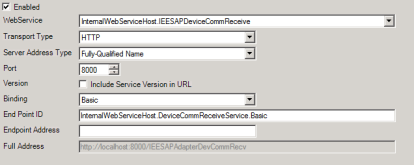
Web Service. Select InternalWebServiceHost.IEESAPDeviceCommReceive or PublicWebServiceHost.IEESAPDeviceCommReceive.
-
Transport Type. Select HTTP.
-
Server Address Type. Select Fully-Qualified Name.
-
Binding. Select Basic.
-
-
Click Save.
-
From the Code Table Selection list, select Web Service Client Table.
-
Add a row.
-
Configure the following parameters:
-
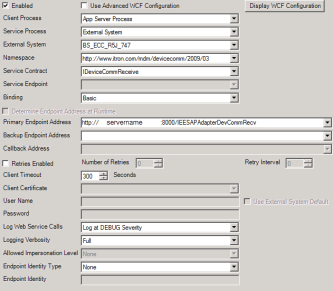
Client Process. Select App Server Process.
-
Service Process. Select External System.
-
Namespace. Select http://www.itron.com/mdm/devicecomm/2009/03.
-
Service Contract. Select IDeviceCommReceive.
-
Endpoint. Unavailable. No selection necessary.
-
Binding. Select Basic.
-
Determine Endpoint Address at Runtime. Clear the checkbox, if selected.
-
Primary Endpoint Address. Enter http://servername:8000/IEESAPAdapterDevCommRecv. The servername is the name of the server that is hosting IEE.
-
-
Click Save.