Validation results card
When channels are selected in the Channels table, the Apply option is enabled and the Validation results card appears on the page.
The Validation results card supports the following actions:
-
To maximize the card, click Maximize (
 ).
). -
To restore the card to the original view, click Minimize (
 ).
). -
To collapse the card, click Up (
 ).
). -
To expand the collapsed card, click Down (
 ).
). -
To download the file, click Download (
 ). The file saves to your browser's configured download folder.
The table contains the following columns:
-
Service point channel
-
Validation result
-
Process date
-
Start date
-
End date
-
Validation slot
-
Validation set
-
User
-
Reading source
-
Is secondary
-
Message
-
View validation report icon (
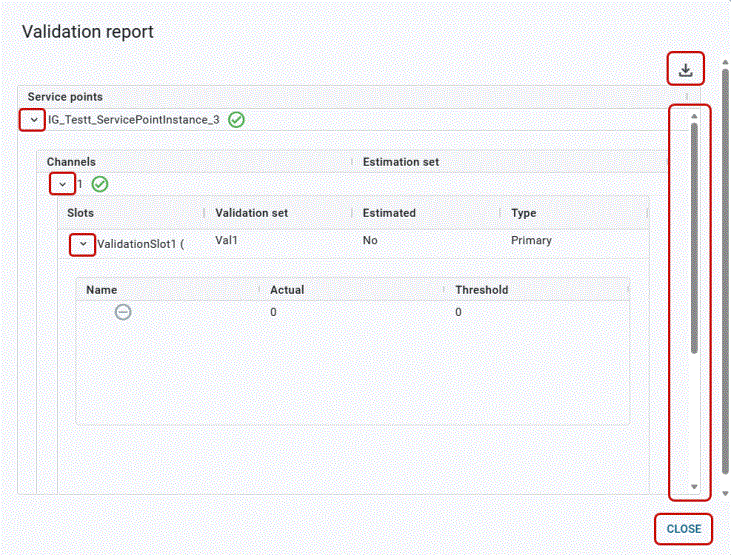
 ). To view the validation log report for a service point, select the View validation report icon () in the row on the table. The Validation report appears. By default, the card is expanded to show the status (Fail
  and Pass
  ), for the service points, channels, and slots.
 The Validation report supports the following actions:
-
To collapse a section, click Up (
). -
To expand the collapsed section, click Down (
). -
To change the sort order, select any column header to sort by that attribute. An up arrow appears in the column header, indicating that the sort is in ascending order. No arrow indicates the default sort order. Select the column header again to switch to descending order, indicated by a down arrow.
Tip: The horizontal and vertical scroll bars appear when additional rows and columns are added to the card.
-
To adjust the width of any column, drag the edges in the column header. To view any text that has been truncated due to width constraints, hover over the text to reveal a tooltip with full text.
-
To save a copy of the results to your device, click Download (
). The file saves to your browser's configured download folder. -
Click Close when you have finished viewing the report.
-
The Validation results table supports the following actions:
-
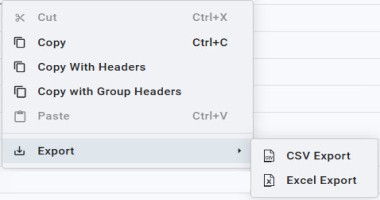
To copy data to the clipboard, select the data to be copied, right-click and select one of the following:
-
Copy
-
Copy with Headers
-
Copy with Group Headers
You can then paste the copied data to the preferred location.
To export a file for the selected data, select Export, and then select CSV Export or Excel Export.
Note: Depending on which browser you use and your browser's settings, you may have to select a location to save the file.
-
-
To change the sort order, select any column header to sort by that attribute. An up arrow appears in the column header, indicating that the sort is in ascending order. No arrow indicates the default sort order. Select the column header again to switch to descending order, indicated by a down arrow.
Tip: The horizontal and vertical scroll bars appear when additional rows and columns are added to the card.
-
To adjust the width of any column, drag the edges in the column header. To view any text that has been truncated due to width constraints, hover over the text to reveal a tooltip with full text.
-
To reorder the columns, drag a column header to the preferred location in the table.
-
To pin any column to the left or right side of the table, hover over the preferred column header, select Menu (
 ) in the column header, and then select Pin Column. Then select Pin Left or Pin Right. To remove a column pin, select No Pin.
 Tip: From the same menu, you can also reset the column width for either the current column or all columns. Select Autosize This Column or Autosize All Columns.
-
To hide columns or to restore hidden columns, hover over any column header and select Menu (
) in the column header.In the dialog that appears, select Choose Columns (
 ) to view the column-selection tab. Clear the columns that you want to hide and select any hidden columns that you want to restore to the table. Click "x" to close the dialog.
Note: Primary columns can be reordered but not hidden.
-
To reset the columns and clear all changes to the current view, hover over any column header, select Menu (
) in the column header, and select Reset Columns.
Related topics: