Search parameters card
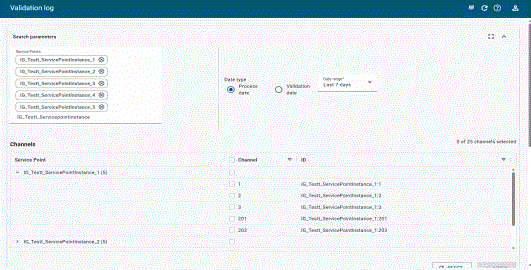
The Search parameters card allows users to search for service points and their channels.
The card supports the following actions:
-
To maximize the card, click Show full page (
 ). This option is disabled when the card is collapsed.
 -
To return the card to the original view, click Restore card (
 ).
). -
To hide the data on the card, click Collapse (
 ).
). -
To show the data on the card, click Expand (
 ).
).
Use the following procedure to view processed or validated service points and channels:
-
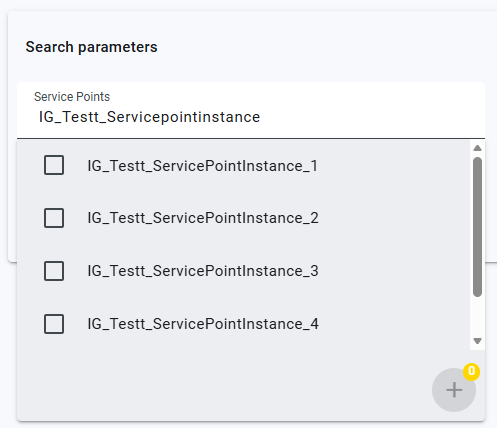
In the Search parameters field, enter the service point or enter a value to automatically populate a list of service points that contain the value entered.
-
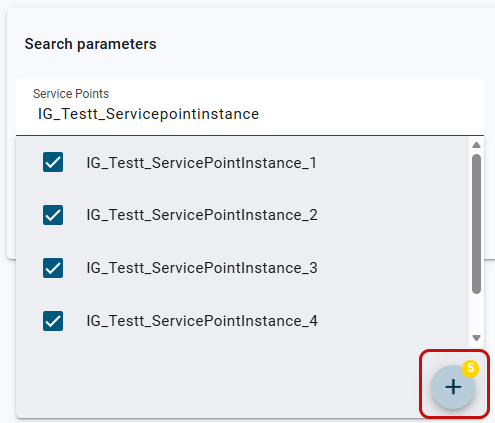
Select the checkboxes for the service points you want to view.
Tip: The number of selected service points appears on the Add icon (
 ).
).
-
Click Add (
) to add the selected service points.The Channels table appears with the data for the selected service points.
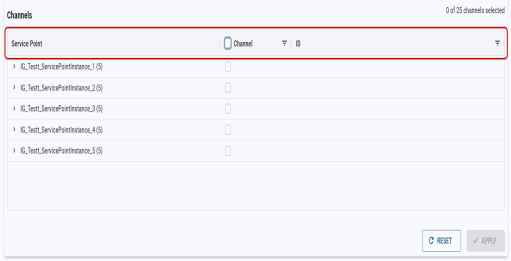
Note: The Apply option is disabled and the Validation results card does not appear on the page until at least one channel is selected and applied. For more information, see Channels table.
-
(Optional) To change the data that appears in the table, select Process date or Validation date, and then select a date range. By default, Processed date and Last 7 days are selected.
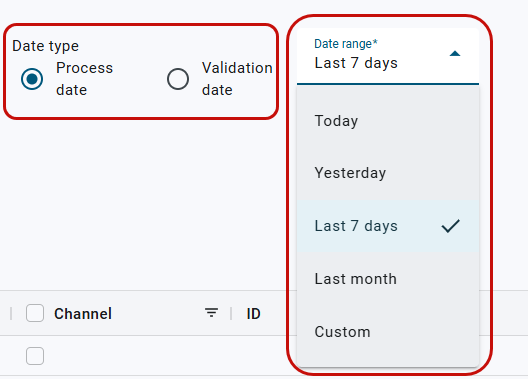
To select a specific date range, select Custom. The Select date range option appears. Using the date-picker (
 ), select the date range and click Apply. By default, the start and end time is 12:00 AM. To change the start and end time, enter a time in each of the appropriate boxes.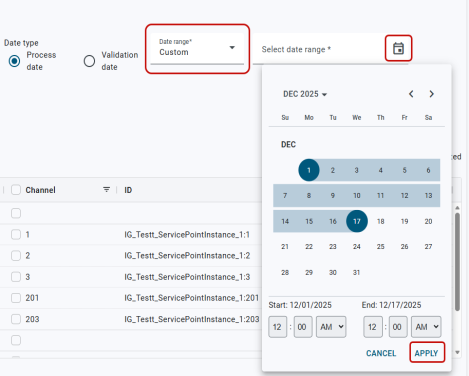
The Channels table shows a list of service points and channels for the selected date range.
Related topics: