Signing in
Web UI supports Itron Authentication and Windows Authentication to verify your user credentials. The same user credentials can be used to access both the IEE rich client application and the web-based user interface, Web UI.
Note: New user accounts must be added by a system administrator within the IEE rich client user interface.
To sign in to Web UI while already signed in to the network, use the following procedure:
-
Using a web browser, enter your designated URL for Web UI. Upon successful authentication, you are redirected to the Dashboard page.
-
To confirm that you are currently signed in as the expected user, click the Account icon (
 ) in the page header. The username and user's initials display in a dialog.
Note: When signing in using Windows Authentication, the user's initials are taken from the user's first and last name. If the user account does not include a first or last name, the user’s initials display as DU, where D is the domain's initial, and U is the user’s name initial. When signing in using Itron Authentication, the user’s initials display as U, where U is the username.
To sign in to Web UI when you are not already signed in to the system, use the following procedure:
-
Using a web browser, navigate to your designated URL for Web UI.
-
You are prompted to select an authentication provider. Select one of the following options:
-
Windows Authentication. Select this option if you typically sign in to the IEE rich client with single sign-on credentials.
-
Itron Authentication. Select this option if you typically sign in to the IEE rich client with credentials that are different from your Windows sign-in credentials.
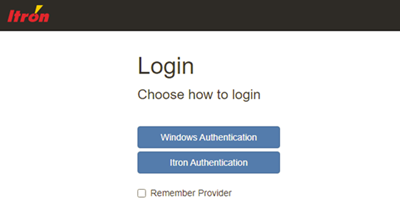
Tip: If you would like Web UI to remember your authentication provider for future sessions, select Remember Provider prior to making your selection.
-
-
Depending on your provider selection in the previous step, proceed to the appropriate topic: