Importing analytic event thresholds
-
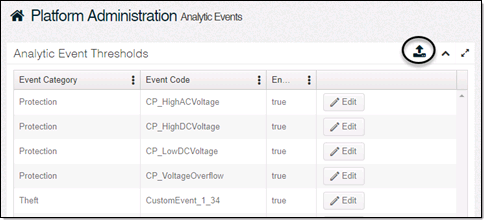
On the Analytic Events page, click Import (
 ).
).
-
Select Import Analytic Event Thresholds.
-
Click Select Files.
-
Browse to your analytic event threshold .csv file and select it.
The CSV file must be formatted with headers and values to match the display of thresholds on the Analytic Events screen (including column order). For example:
CopyEventCode,CommodityType,UnitID,MeterSize,Threshold,NumberOfDays,EffectiveStartDate
Leak,Water,KGAL,4",0.1,4,1/1/2000
Leak,Water,KGAL,5/8",0.005,3,1/1/2000
Leak,Water,KGAL,Any,0.2,5,1/1/2000Tip: Ensure that Microsoft Excel does not add extra characters after meter size values.
-
Click Open.
-
Click Import.
A confirmation message displays the number of thresholds that were successfully updated or added, and a detail of thresholds that failed. If more than ten thresholds fail, the file will not import.