Creating an analytic event threshold
-
On the Analytic Events page, click Edit for the Event Category and Event Code combination you want to add a threshold to.
-
(Optional) Clear the Enabled checkbox to disable all thresholds for the selected Event Category. The Enabled checkbox is selected by default.
-
In the Event Thresholds table, click Create.
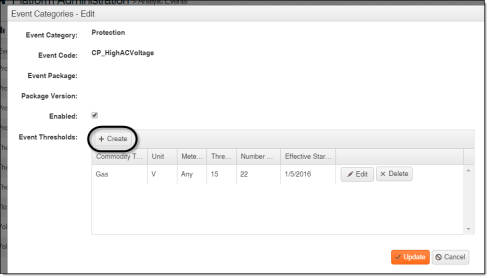
-
From the Commodity Type menu, select the commodity (Electric, Gas, or Water) associated with the event.
-
From the Unit menu, select the unit of measure. This is the unit in which the threshold is measured.
Important! Thresholds apply to unique units of measure from the Master Data Import (MDI) file, and the unit selected must match that in the MDI file exactly. For example, a threshold for CF does not apply to CCF. If multiple ChoiceConnect products are used, define the same unit of measure for both products.
-
In Meter Size, type the size of the meters associated with the event.
Important! The meter size you enter in Itron Analytics must match the size in the MDI file exactly. Do not modify the default threshold settings without guidance from Itron.
-
In Threshold, type the threshold. This is the value against which incoming data is analyzed for analytic events. Itron Analytics handles thresholds differently for each Event Code. For example:
-
Cathodic Protection High DC Voltage. Voltage is lower than the threshold.
-
Cathodic Protection Low DC Voltage. Voltage is greater than the threshold.
-
Leak. Minimum flow is greater than the threshold.
-
NoUsageActive. Total volume is less than the threshold.
-
ReverseFlow. Minimum flow is less than the threshold (a negative value).
-
UsageInactive. Total volume is greater than the threshold.
Important! A minus (-) sign must precede the usage value for it to be recognized as negative.
-
-
In Number of Days, type the number of days. This is the minimum number of consecutive midnight-to-midnight periods during which a threshold must be exceeded before Itron Analytics generates an analytic event.
-
From the Effective Start Date menu, select the start date. This is the date and time after which Itron Analytics applies the threshold. This refers to the time the usage or meter event occurred, not the time when the data was collected or imported.
Tip: Selecting an effective start date from the past is an option, but requires that you re-import historic data that includes past events. If you select an effective start date from the past and you do not re-import historic data, then Itron Analytics only reviews the new data.
-
Click Update.
-
Click Update.