Firmware Download Best Practices
Downloading firmware to an ERT or meter requires:
-
an Itron Mobile Radio (IMR) running firmware version 2.6 or later, and
-
a Windows computer running Field Tools 3.0 or later.
The ERT/meter can be in Mobile mode or Network mode.
Firmware can be downloaded to one ERT/meter at a time. One-to-many is not supported.
|
If you are setting up multiple IMRs and computers to simultaneously download firmware to multiple meters, choose meters that are at least 100 feet apart to minimize potential RF interference and packet corruption.
For each ERT/meter, perform the Request Commands function. See Request security materials from the FDM Tools server under Request commands.
For greatest success, follow these best practices:
-
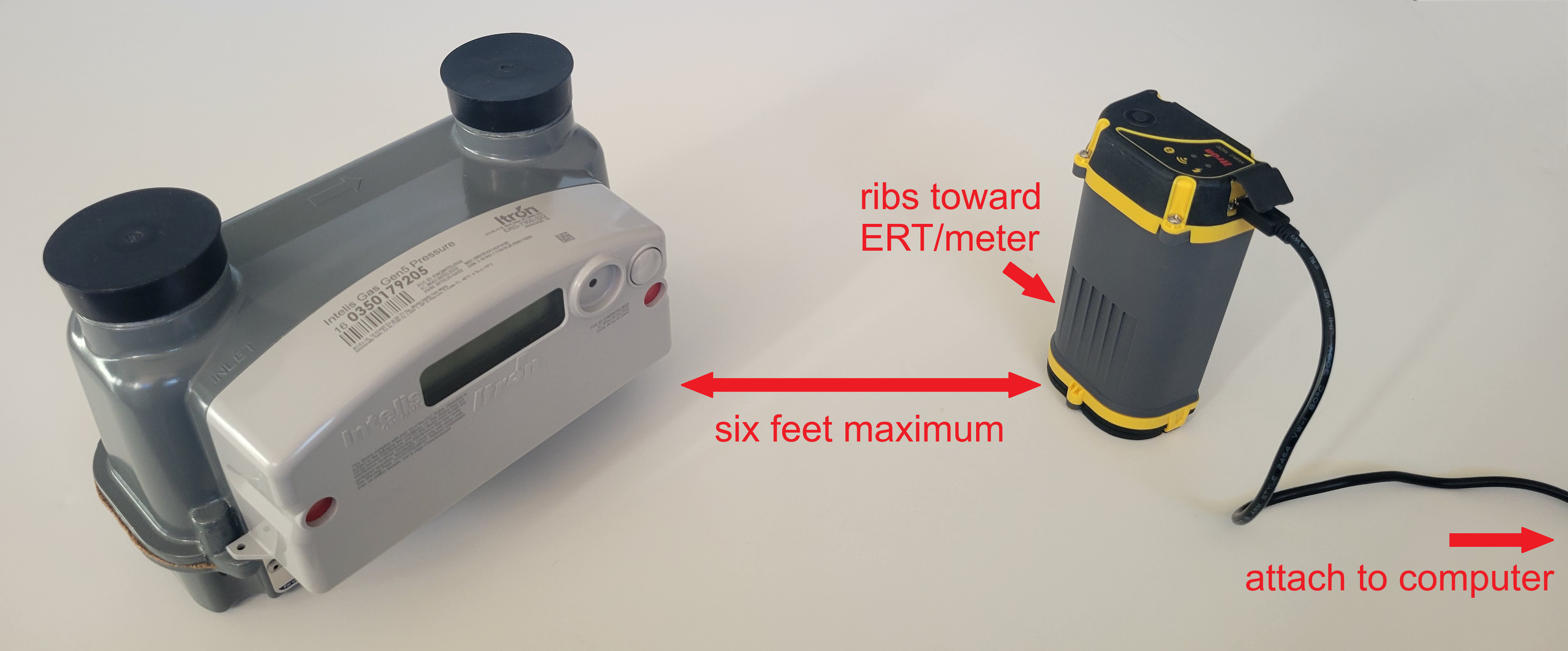
Place the IMR within six feet of the ERT/meter.
-
Orient the IMR so that the ribs in the case face toward the ERT/meter.
The IMR's antenna is mounted behind the ribs and this orientation provides the best possible RF path to the device.
-
Keep the IMR connected by USB cable to the computer running Field Tools.
-
Bluetooth is not recommended and is expected to fail frequently.
-
Ensure the IMR Radio Settings are using the USB COM port and not a Bluetooth port.
-
-
Check that the IMR has at least 50% charge before starting a firmware download.
Make sure the IMR is fully charged at the start of the day. Do not assume the laptop will keep the IMR sufficiently charged.
-
Keep the Field Tools app in the foreground of the computer. Do not navigate away from the Field Tools app during the entire process.
-
Do not allow the computer to go to sleep.
-
Disable any screen saver being used.
-
Disable the screen turning off.
-
Disable putting the hard drive to sleep.
-
Disable the computer being put to sleep.
-
Disable turning off USB devices.
-
Disable Energy Saving modes.
-
Do not close the lid on the laptop.
-
Troubleshooting
Some errors may be expected while performing a firmware download because the process uses Radio Frequency (RF) transmissions between the two devices. Errors might occur if the RF communication flow is interrupted or the computer's operating system introduces an error.
If a download attempt fails, refer to the following steps, in the order shown.
-
Restart the IMR by turning it off and back on.
-
Restart the Field Tools app by closing it without signing out. Restart Field Tools, then restart the firmware download.
-
Restart the computer only as a last resort.
-
Contact Itron Customer Support if you are unable to resolve the issue. Itron will provide assistance.