Creating an FDM User Identity (user store management enabled)
-
In the navigation pane, select User Identities.
-
In the contents pane’s command toolbar, click Add
 .
.
The system displays the Add User dialog box.
-
Type the user name of the user whose FDM user identity you are adding.
If the user’s Windows account has already been created in Active Directory or on the server computer, the user name you enter here must match the Windows account user name.
-
Click Validate.
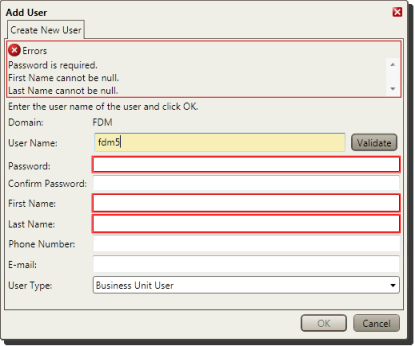
The system determines whether the user name you typed is associated with an existing Windows account in the FDM user group.
or
If the user name is associated with an existing Windows account on the local computer, the user is a member of the FDM user group, and the user name does not already exist in FDM, the system removes the password boxes.
-
If the user name is associated with an existing Active Directory account that is a member of the FDM user group and if the user name does not already exist in FDM, it removes the password boxes and displays the first and last names associated with the existing Active Directory account.
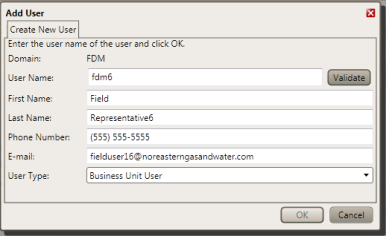
You can change the values in the First Name and Last Name boxes, but any changes you make will not affect the corresponding name information in the Windows account.
-
In the Phone Number box, type the phone number at which an FSR can gain contact with an engineer to obtain a security token if he or she is servicing a prepaid meter.
-
In the Email box, type the address to which you want FDM to send system notifications for the new user, if applicable.
-
Select the desired user type from the User Type drop-down list.
-
Enter a first and last name for the new user identity.
The values you enter in the First Name and Last Name boxes will not affect the corresponding name information in the Windows account.
-
Click OK.
The system creates the FDM user identity and returns you to the User Identities list.
If the user name is associated with an existing Windows account on the local computer, the user is a member of the FDM user group, and the user name does not already exist in FDM, the system removes the password boxes.
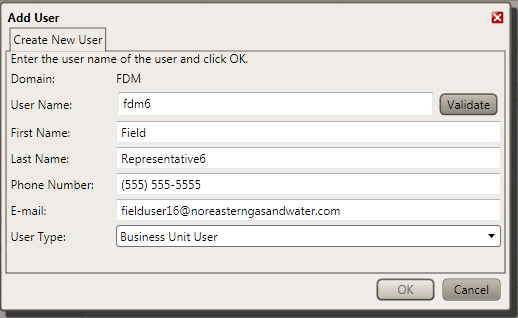
You can change the values in the First Name and Last Name boxes, but any changes you make will not affect the corresponding name information in the Windows account.
-
Enter a first and last name for the new user identity.
-
In the Phone Number box, type the phone number at which an FSR can gain contact with an engineer to obtain a security token if he or she is servicing a prepaid meter.
-
In the Email box, type the address to which you want FDM to send system notifications for the new user, if applicable.
-
Select the desired user type from the User Type drop-down list.
-
Click OK.
-
The system creates the FDM user identity and returns you to the User Identities list.
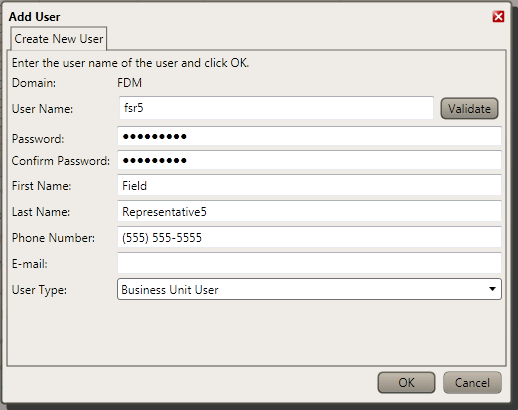
If the user name you typed in the User Name box is not associated with an existing Windows Active Directory or local user account, the system continues to display the password fields and the First Name and Last Name boxes remain blank.
-
Type a password for the account in the Password and Confirm Password boxes.
In the First Name and Last Name boxes, type the first and last names to be associated with the user’s Windows account. These will also be the first and last names associated with the new user in FDM, although you can change these later in the details pane (for the FDM user identity only—not in the Windows user account). Likewise, the user can change his or her first or last name in FDM through the My FDM workbench’s My Account view.
-
In the Phone Number box, type the phone number at which an FSR can gain contact with an engineer to obtain a security token if he or she is servicing a prepaid meter.
-
In the Email box, type the address to which you want FDM to send system notifications for the new user, if applicable.
-
Select the desired user type from the User Type drop-down list.
-
Click OK.
The system creates the user’s Windows user account, adds the user to the FDM user group, creates the FDM user identity, and returns you to the User Identities list.
If the user name you type in the User Name box is assigned to an existing FDM user identity, or if the user name is associated with an existing Windows account that is not a member of the FDM user group, the system displays a message box with this title: A Unique Constraint Violation Occurred.
-
Click Continue to return to the Add User dialog box and enter a different, unique user name for the new user.
In other circumstances, FDM may not be able to create a Windows account for the new user. For example, this can happen when the user is a subcontractor who works in multiple deployments. In this case, the system displays a User Already Exists message. If you see this message, either click Continue and change the user name or click Exit and contact Itron support personnel for help in adding the user.
-
With the new user selected in the contents pane, click the Properties tab.
- If your FDM system is configured to support two or more languages, select a default language for the new user from the Language drop-down list.
- If the new user will be a system user, select the desired Server Permissions check boxes.
- If the new user will be an FSR or other FDM handheld user, select the desired Mobile Permissions check boxes:
- Exit Mobile Application. Allows the user to exit the FDM mobile application on a handheld data collection device.
Without this permission, a user can log off FDM but not exit the application altogether.
- Minimize Mobile Application. Allows the user to minimize the FDM mobile application on a handheld data collection device.
- Modify Mobile Device Settings. Allows the user to edit settings on the settings screen.
Without this permission, a user can view the settings screen, but not edit the settings.

Together, these permissions give the user access to the Windows CE desktop and other handheld applications besides FDM.
-
Click Save
 to save your changes.