Creating an FDM User Identity (user store management not enabled)
- In the navigation pane, select User Identities.
- Click Add
 in the command toolbar.
- The system displays the Add User dialog box.
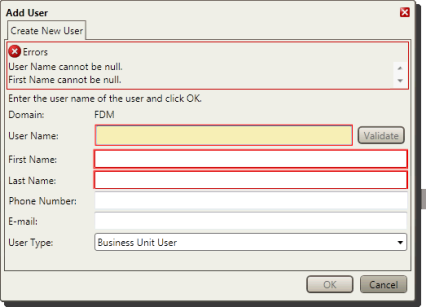
- Type the Windows user name, first name, and last name of the user whose FDM user identity you are adding.
If the user’s Windows account has already been created in Active Directory or on the server computer, the user credentials you enter here must match those of the Windows account.
- In the Phone Number box, type the phone number at which an FSR can gain contact with an engineer to obtain a security token if he or she is servicing a prepaid meter.
- In the Email box, type the address to which you want FDM to send system notifications for the new user, if applicable.
- Select the desired user type from the User Type drop-down list.
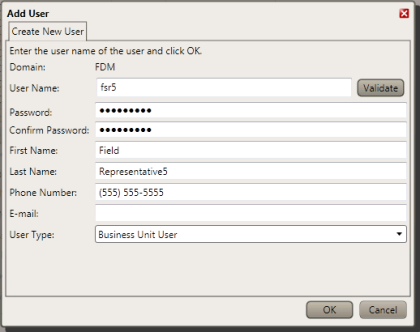
Click OK.
- Type the Windows user name, first name, and last name of the user whose FDM user identity you are adding.
- FDM compares the user name to the user names of existing FDM users to verify that it is a new, unique user name.
- If the user name is already assigned to an existing user identity, it displays a message box indicating A Unique Constraint Violation Occurred.
Click Continue to return to the Add User dialog box and enter a different, unique user name for the new user.
- If the user name is already assigned to an existing user identity, it displays a message box indicating A Unique Constraint Violation Occurred.
- With the new user selected in the contents pane, click the Properties tab.
- If your FDM system is configured to support two or more languages, select a default language for the new user from the Language drop-down list.
- If the new user will be a system user, select the desired Server Permissions check boxes.
- If the new user will be an FSR or other FDM handheld user, select the desired Mobile Permissions check boxes:

The Mobile Permissions check boxes are selected by default. Clear the check boxes that correspond to the permissions which you don't want to allow the FSR.
Select the desired Mobile Permissions check boxes.
- Exit Mobile Application. Allows the user to exit the FDM mobile application.
Without this permission, a user can log off FDM but not exit the application altogether.
- Minimize Mobile Application. Allows the user to minimize the FDM mobile application.
- Modify Mobile Device Settings. Allows the user to edit settings on the settings screen.
Without this permission, a user can view the settings screen, but not edit the settings.
Together, these permissions give the user access to the Windows CE desktop and other handheld applications besides FDM.
Click Save
 to save your changes.