Troubleshoot FDM Tools meter connection errors
When using FDM Tools to connect to the DDK meter, on occasion you may see one of the following connection or timeout errors.
Restart (or start) the FSU Service Tray service
If you see the following FDM Tools error message, it indicates the FSU service is not running.
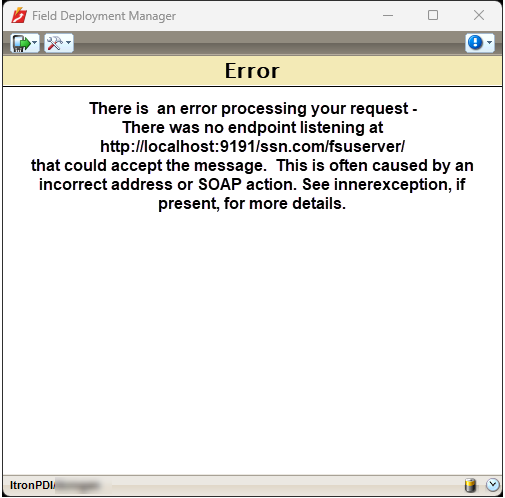
Typically the FSU Service Tray runs automatically without intervention, but there are times when it stops running. In these cases you must manually restart the service to resolve the issue.
-
In the lower-right part of your screen, right-click the FSU Service Tray icon and select Show.
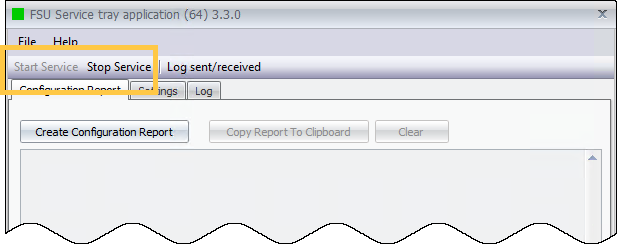
The FSU Service Tray window opens.
-
Do one of the following:
-
If the Start Service button is unavailable, this means the service is currently running. Click Stop Service, wait a moment and click Start Service.
-
If the Stop Service button is unavailable, this means the FSU service is already stopped. Click Start Service to restart the service.
-
-
Retry connecting FDM to the DDK meter.
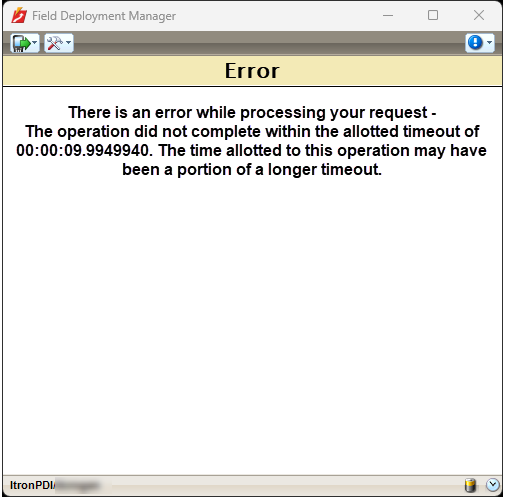
Change the computer Wi-fi adapter to use the 2.4 GHz connection
If you see the following FDM Tools timeout error message, it indicates that the computer Wi-fi adapter settings must be changed to use 2.4 GHz communication, instead of 5.0 GHz communication. For more information, see Change the Wi-fi adapter to use the 2.4 GHz connection.